Control an LG webOS TV with the Apple Remote App through Home Assistant
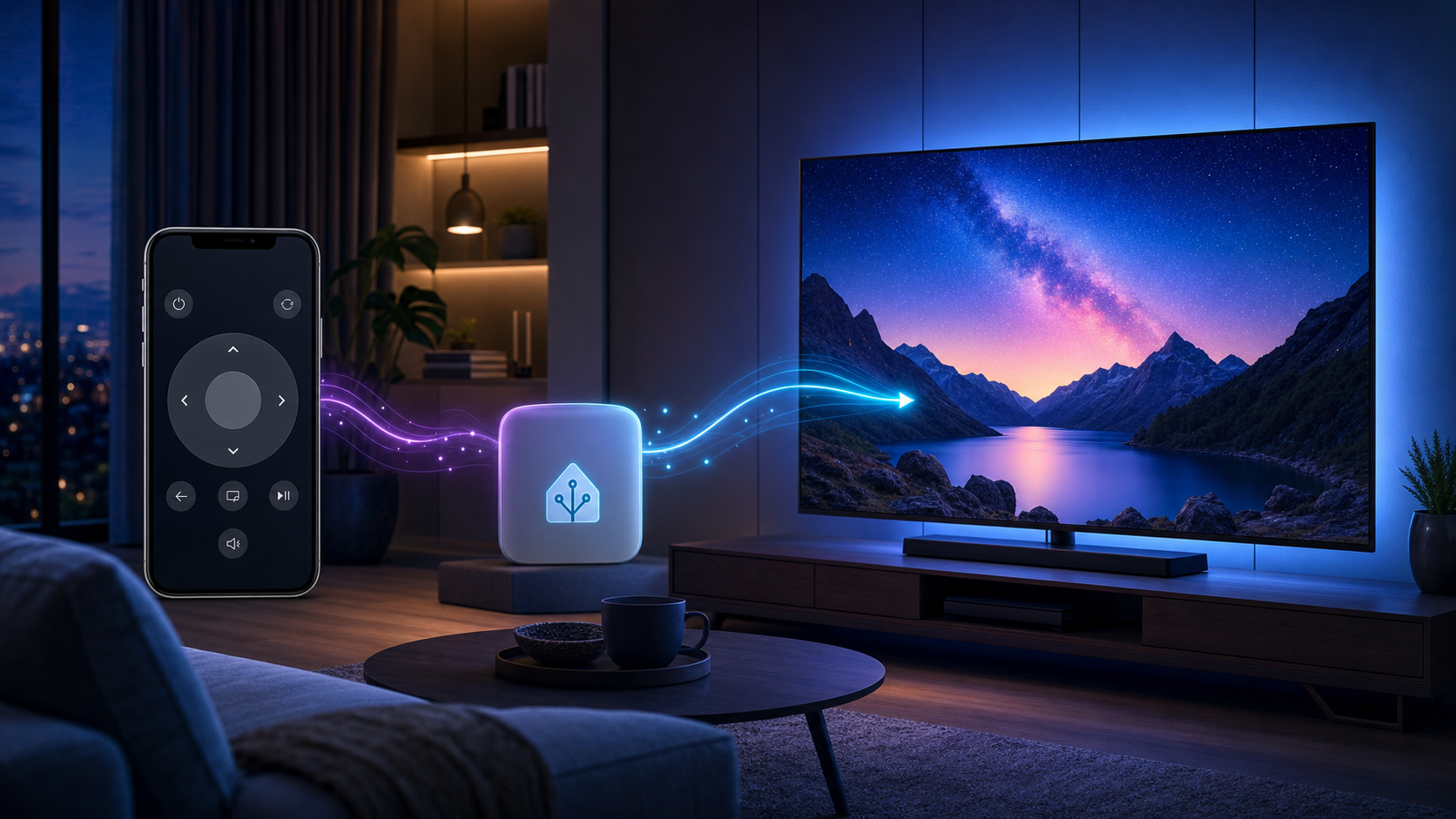
I have an LG webOS TV in Home Assistant, and I wanted one small quality-of-life improvement: control it from the Apple Remote interface on my iPhone.
This setup was inspired by the Home Assistant Community post Control Android TV via HomeKit Remote App using Home Assistant. I adapted the same event-driven idea for LG webOS and the webostv.button action.
The idea is simple:
- Home Assistant exposes the TV to Apple Home via HomeKit.
- The iPhone Apple Remote sends
homekit_tv_remote_key_pressedevents to Home Assistant. - A Home Assistant automation catches those events.
- A script translates HomeKit key names into LG webOS button commands.
- Home Assistant sends the command to the TV through the
webostv.buttonaction.
This makes the iPhone remote behave like a lightweight LG TV remote, without needing to open the LG app.
Requirements
Before setting this up, make sure you already have:
- Home Assistant running
- LG webOS TV added to Home Assistant
- A working media player entity, for example:
media_player.lg_tv
- HomeKit Bridge configured in Home Assistant
- The TV exposed to Apple Home
Important: expose the TV as its own HomeKit Bridge instance in Accessory mode. According to the Home Assistant HomeKit Bridge documentation, Television media players (
media_playerentities with device classtvorreceiver) must useaccessorymode instead of the defaultbridgemode. The include filter should contain only that single TV entity, for examplemedia_player.lg_tv.
In practice, this means I do not put the LG TV inside my normal HomeKit Bridge with lights, switches, and sensors. I create a separate HomeKit Bridge entry just for the TV:
- Go to Settings → Devices & services.
- Add another HomeKit Bridge integration.
- Choose Accessory mode.
- Include only
media_player.lg_tv. - Pair that new HomeKit accessory in the Apple Home app.
Once the TV appears in Apple Home as its own accessory, iOS can send remote key events back into Home Assistant.
How the Flow Works
When I press a button in the Apple Remote app, Home Assistant receives an event like this:
event_type: homekit_tv_remote_key_pressed
event_data:
  entity_id: media_player.lg_tv
  key_name: arrow_right
The important fields are:
entity_id: which HomeKit TV accessory received the remote commandkey_name: which key was pressed
Home Assistant does not automatically know that arrow_right should become an LG webOS RIGHT button command. That translation is what the script handles.
Script: Translate HomeKit Keys to LG webOS Buttons
Create a Home Assistant script named LG TV Remote Handler:
alias: LG TV Remote Handler
description: Controlling LG webOS TV via HomeKit Remote
mode: parallel
fields:
  media_player_entity:
    description: Entity ID of the LG TV media player
    example: media_player.lg_tv
  key_name:
    description: Key pressed on HomeKit Remote
    example: arrow_right
sequence:
  - variables:
      command_map:
        arrow_up: UP
        arrow_down: DOWN
        arrow_left: LEFT
        arrow_right: RIGHT
        select: ENTER
        back: BACK
        information: HOME
        play_pause: PLAY
  - condition: template
    value_template: |-
      {{
        media_player_entity is defined
        and key_name is defined
        and key_name in command_map
      }}
  - action: webostv.button
    target:
      entity_id: "{{ media_player_entity }}"
    data:
      button: "{{ command_map[key_name] }}"
The command_map is the key part:
arrow_up: UP
arrow_down: DOWN
arrow_left: LEFT
arrow_right: RIGHT
select: ENTER
back: BACK
information: HOME
play_pause: PLAY
The left side is the HomeKit key name. The right side is the LG webOS button name.
I map information to HOME because that button is convenient as a Home shortcut on the Apple Remote interface. You can change this mapping if you prefer another behavior.
The script also checks that:
media_player_entityexistskey_nameexistskey_nameis supported bycommand_map
If an unknown key is received, the script simply stops without sending anything to the TV.
Automation: Listen for Apple Remote Events
Next, create an automation that listens for HomeKit remote key events:
alias: Handle Any HomeKit Remote
description: Listen to HomeKit remote events and control LG webOS TVs
triggers:
  - event_type: homekit_tv_remote_key_pressed
    trigger: event
conditions:
  - condition: template
    value_template: |-
      {{
        trigger.event.data.entity_id is defined
        and trigger.event.data.entity_id == 'media_player.lg_tv'
      }}
actions:
  - data:
      media_player_entity: media_player.lg_tv
      key_name: "{{ trigger.event.data.key_name }}"
    action: script.lg_tv_remote_handler
mode: parallel
This automation does three things:
- Listens for every
homekit_tv_remote_key_pressedevent. - Filters events so only
media_player.lg_tvis handled. - Calls the script with the pressed key name.
The condition is important if you expose more than one TV to HomeKit. Without it, one remote event could accidentally control the wrong TV.
Testing the Event
If the remote does not work immediately, first check whether Home Assistant receives the event.
In Home Assistant:
- Go to Developer Tools.
- Open the Events tab.
- Start listening to:
homekit_tv_remote_key_pressed
Then open the Apple Remote app on your iPhone and press the arrow keys.
You should see event data similar to:
event_type: homekit_tv_remote_key_pressed
data:
  entity_id: media_player.lg_tv
  key_name: arrow_right
If the event appears, HomeKit is working and the problem is probably in the script or automation mapping.
If no event appears, check that the TV is exposed through HomeKit Bridge and visible in Apple Home.
Extending the Button Mapping
The setup is intentionally small, but it is easy to extend.
For example, if you find more HomeKit key names from the event listener, you can add them to command_map:
command_map:
  arrow_up: UP
  arrow_down: DOWN
  arrow_left: LEFT
  arrow_right: RIGHT
  select: ENTER
  back: BACK
  information: HOME
  play_pause: PLAY
The same automation can stay unchanged. Only the script needs to know how to translate keys.
Why Use a Separate Script?
I keep the translation logic in a script instead of putting everything directly in the automation for a few reasons:
- The automation only handles event filtering.
- The script owns the key-to-button mapping.
- It is easier to reuse for another LG TV later.
- It keeps the YAML easier to read.
For multiple TVs, the script can stay generic because it accepts media_player_entity as a field. Each automation can pass a different TV entity.
Final Thoughts
This is a small Home Assistant automation, but it makes the LG TV feel much better integrated with the Apple ecosystem.
Instead of switching to the LG remote app, I can open the Apple Remote from Control Center and navigate the TV with familiar buttons. Home Assistant sits in the middle and translates everything into LG webOS commands.
It is also a nice example of why Home Assistant is so useful: it can connect two ecosystems that were not designed to talk to each other directly and make the result feel native.